


Overview
This article explains how to troubleshoot a computer that has no audio output.
Common causes include:
- Incorrect audio device selected
- Muted volume
- Headset or dock still selected as the output device
- Application using the wrong audio device
Step 1: Check Volume and Mute Settings
Before troubleshooting software, check the simple things first.
Verify:
✅ Volume is turned up
✅ Computer is not muted
✅ Keyboard mute key is not enabled
✅ External speakers/headset are powered on
Check the speaker icon in the Windows taskbar.
Step 2: Verify the Correct Audio Output Device
Windows may be sending audio to the wrong device.
- Click the speaker icon in the taskbar.
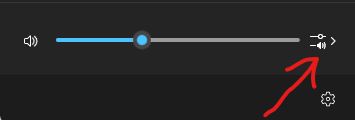
- Click the output device selector.
Verify the correct device is selected.
Examples:
- Laptop Speakers
- USB Headset
- Dock Audio
- Bluetooth Headphones
- External Speakers
Step 3: Disconnect External Audio Devices
Many "no sound" issues happen because Windows is still trying to use a device that is no longer connected.
Disconnect:
- USB headsets
- Docking stations
- Bluetooth headphones
- External speakers
Restart the audio test.
Step 4: Test Windows Audio
Open:
Right click Start  → Settings → System → Sound
Verify:
Output
Correct device selected.
Click:
Test
Confirm sound plays.
Step 5: Check Application Audio Settings
Applications can use a different audio device than Windows.
Common applications:
- Microsoft Teams
- Zoom
- Web browsers
Microsoft Teams
Go to:
Settings → Devices
Verify:
Speaker
Correct output device selected.
Microphone
Correct input device selected.
Use:
Make a test call
During a Teams Meeting
While in a meeting:
- Click the arrow next to the microphone button.
- Verify:
Speaker
is set to the correct device.
- Verify:
Microphone
is set to the correct device.
Zoom Audio Settings
Check Speaker and Microphone
- Open Zoom
- Click your profile picture.
- Select:
Settings
- Select:
Audio
Still having issues?
If you are still experiencing issues put in a ticket to IT if you need to be in a meeting asap call IT.

